
How to Make Digital Products to Sell with Claude and Canva (2026)
Aug 10, 2026To make digital products with Claude and Canva, connect the two using Claude's Canva connector, then describe the product you want — a printable, a template, a planner — and Claude builds it as a real, editable Canva design in minutes. It can pull from your Canva brand kit, generate several options at once, and export the finished file as a PDF without you ever opening Canva manually. The connector is free to add; building full designs requires Canva Pro.
Key takeaways
- Claude's Canva connector lets Claude build actual editable Canva designs — not just ideas you have to make yourself.
- Ask Claude to "use my Canva brand kit" and it pulls your real colors and fonts so the product is on-brand from the first draft.
- Printables and template sets are two of the most in-demand digital products — and this workflow spins them up in minutes.
- You can upload a screenshot of a look you love and Claude will match the vibe.
- Claude can export the finished design as a PDF directly from the chat.
If you've got ideas for products but freeze the second you're staring at a blank Canva page — I see you, friend. That was me for years.
Here's the plot twist that changed things: Claude and Canva can now work together, and it's probably not what you think. This isn't Claude spitting out a list of ideas for you to go build yourself. Claude goes inside Canva and builds the actual design in real time, based on what you describe.
So let me show you how to connect them, and three digital products you can build with them today. I don't gatekeep, so you're getting the whole workflow — plus two pro tips at the end that seriously level up what you get out of it.
Heads up — some links below are affiliate links, which means I may earn a small commission if you buy through them, at no extra cost to you. I only recommend tools I actually use.
How does Claude work with Canva?
Think of it as a team: Claude is your AI assistant, Canva is the design tool, and Claude's connector feature is the bridge between them.
Once they're linked, Claude can search your Canva designs, build brand-new ones from a text prompt, pull from your brand kit, and export finished files — all from the chat window. You describe, it designs. For anyone who has ideas but doesn't know where to start in Canva, this duo is a total game changer.
How to connect Claude to Canva
The setup takes about two minutes and you only do it once.
In Claude, open your Settings and go to Connectors. This is where you link outside tools — Gmail, Google Drive, and now Canva. Click add connector, choose browse connectors, and if you don't see Canva right away, search for it. Hit the plus icon on the Canva card, click connect, and follow the prompts to sign into your Canva account and authorize it. A few quick clicks and it's done.
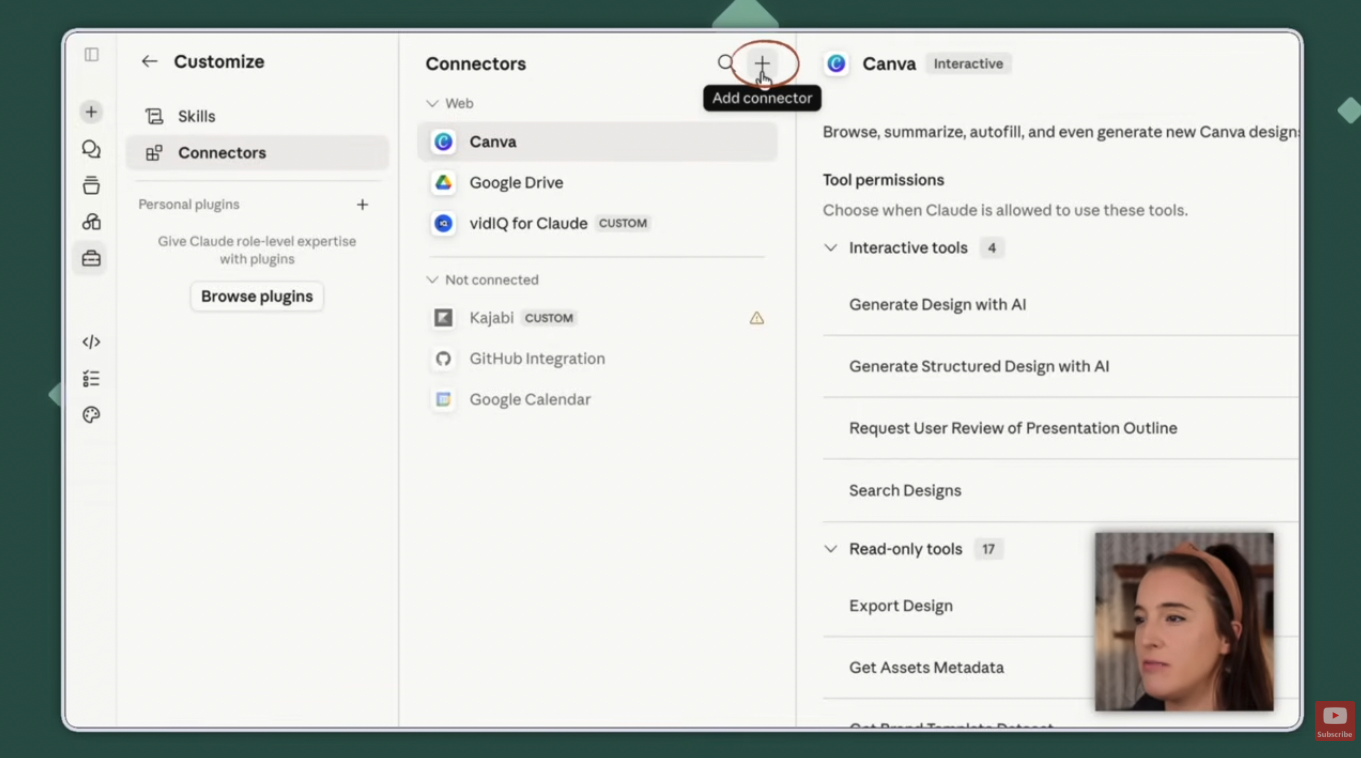
Once it's connected, open the connector and you'll see every action Claude can do inside Canva — with three permission levels for each one. You can set a task to always allow (Claude does it automatically), needs approval (Claude asks first each time, with a little pop-up), or block (Claude can never do it). I love this. You decide exactly how much access Claude has, task by task.
Then start a new chat, and before you prompt, click the plus icon, choose connectors, and make sure Canva is toggled on for that chat. Now you're ready.
The secret ingredient: your prompt
Real talk — your prompt is the most important part of this whole thing. The design Claude builds is only as good as what you tell it.
A generic prompt gets you a generic design. A robust one — where you tell Claude who you are, who your audience is, exactly what you want, the style and feel, the colors, the size, the layout — gets you something close to done on the very first try.
If prompting feels intimidating when you're starting out, I've got you covered. My free Claude Starter Pack includes a copy-and-paste mega prompt template — you just drop in the few details specific to your project and the rest is done for you. It also comes with an overview of Claude's core features, a brand guidelines doc to upload to Claude, and three done-for-you Claude project templates.
Prompting is the whole ballgame with AI. Grab my free Claude Starter Pack — including the copy-paste mega prompt template — so you never stare at a blank chat box again. Download the Claude Starter Pack here.
3 digital products you can build with Claude and Canva
Here are three real examples — and yes, all three are things people actively sell as digital products.
1. A family command center printable
Whether it's for your own kitchen wall or something you want to sell, this one builds in minutes. Here's the kind of prompt I'd give:
"Create a family command center printable in Canva using my Canva brand kit. Sections for a weekly schedule, meal plan, grocery list, and notes. Clean, modern style, soft warm colors, letter size."
See that "using my Canva brand kit" line? That's one of my favorite things Claude can do. Instead of describing your brand in the prompt, you just tell it to use your kit, and it goes into Canva, pulls your real fonts and colors, and builds from there. (If you haven't set yours up yet, here's my full walkthrough on how to set up your brand kit in Canva first — it makes this step so much better.)
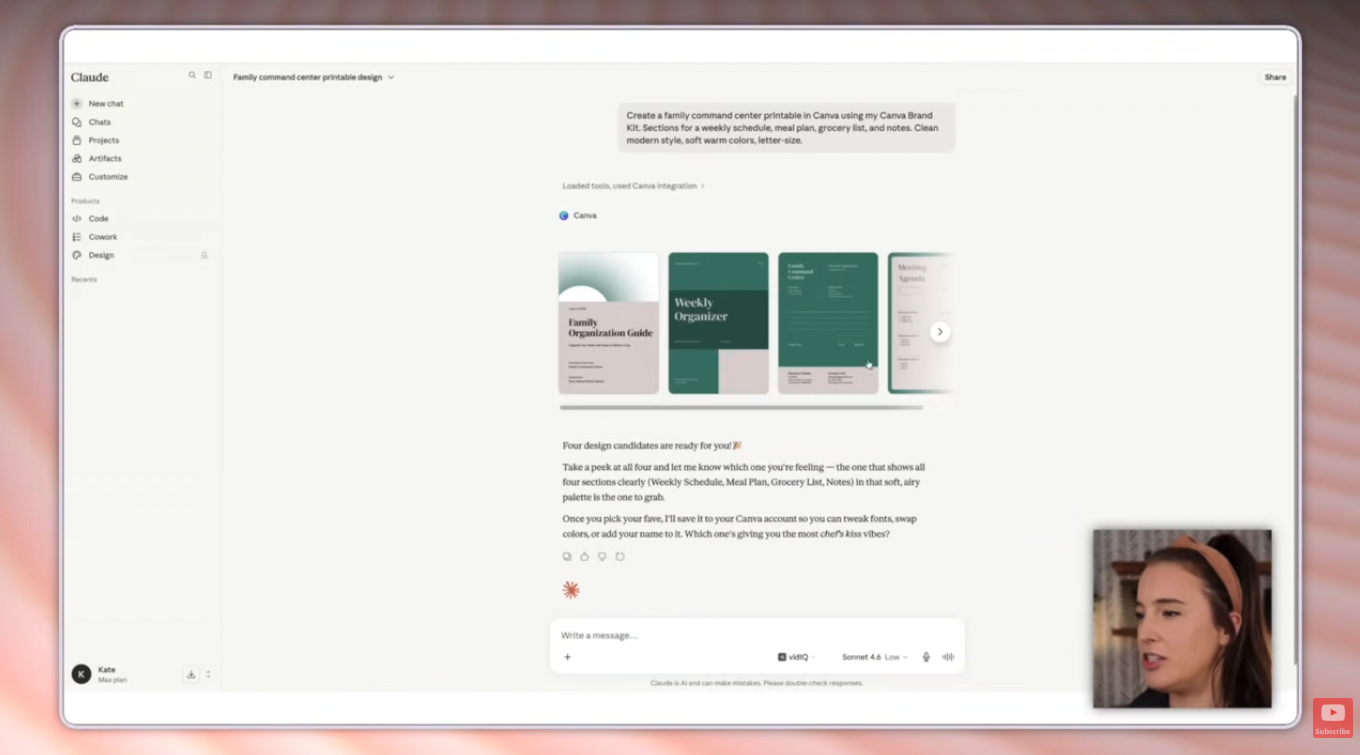
Claude tells you what it's doing as it works, then hands back four options. Love one but want changes? Just keep chatting — "add a kids' activity section," "add fillable blanks to the grocery list." When it's ready, say "export design number two as a PDF," and Claude exports it straight from the chat. It also saves the design in your Canva account so you can edit further anytime.
2. A set of matching Instagram templates
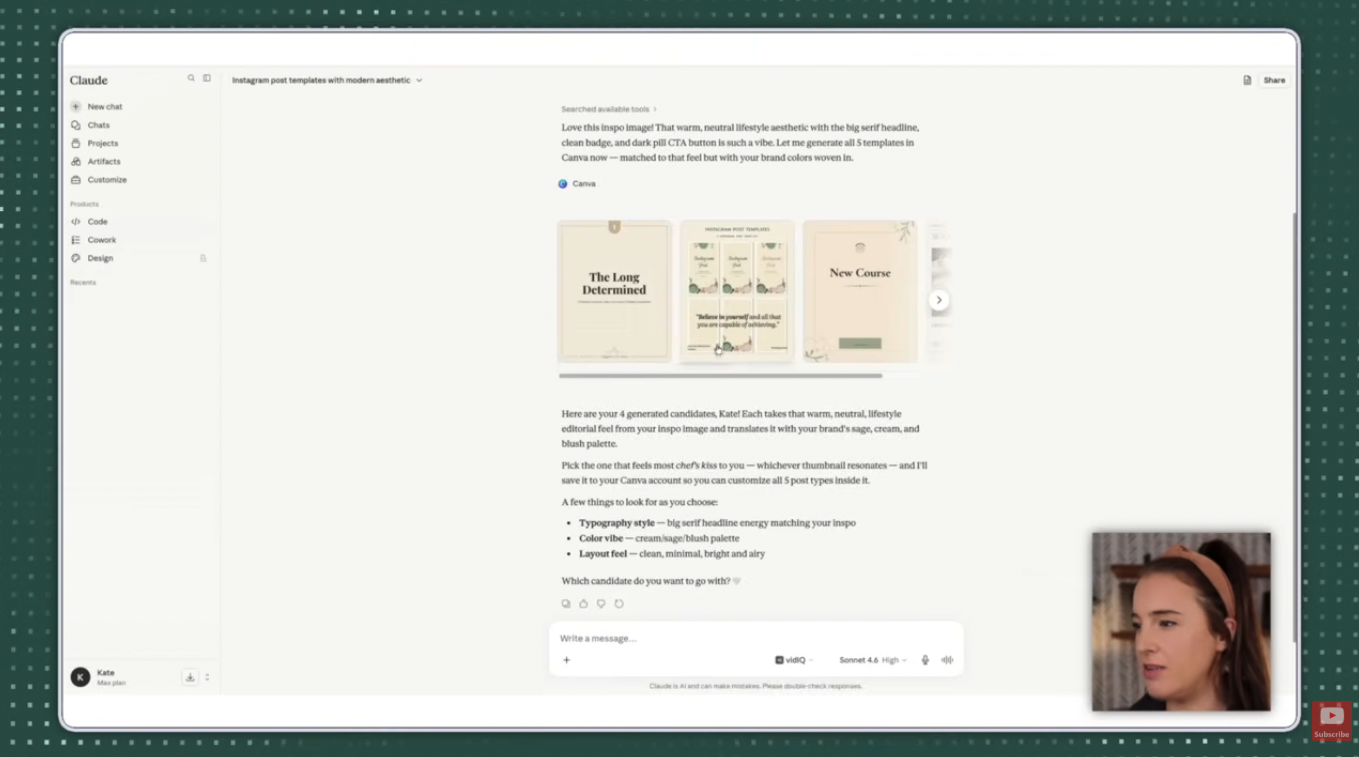
This one shows off a different trick: instead of your brand kit, you can hand Claude a screenshot of a look you love — someone's post, a Canva template, anything — and it'll match the vibe.
Upload the screenshot with the plus button, then prompt something like:
"I'm uploading a screenshot of an Instagram post I love. Using a similar aesthetic, style, and feel, create a set of five matching Instagram post templates in Canva. I need one quote template, one tip post, one promotional post, one behind-the-scenes, and one announcement. Modern, bright, airy style."
The screenshot gives Claude a visual target, so the results land closer to what's in your head. It'll even offer to write the actual copy for each post — the quote, the tip, all of it. And here's the thing: matching template sets like this are one of the most in-demand digital products out there, because plenty of buyers just want something ready-made instead of building it themselves.
3. A reusable newsletter template
The magic of a template is you build it once and swap the copy week to week. This works for any newsletter — business, school, community, church. Here's a prompt with neither a brand kit nor a screenshot, just a plain description:
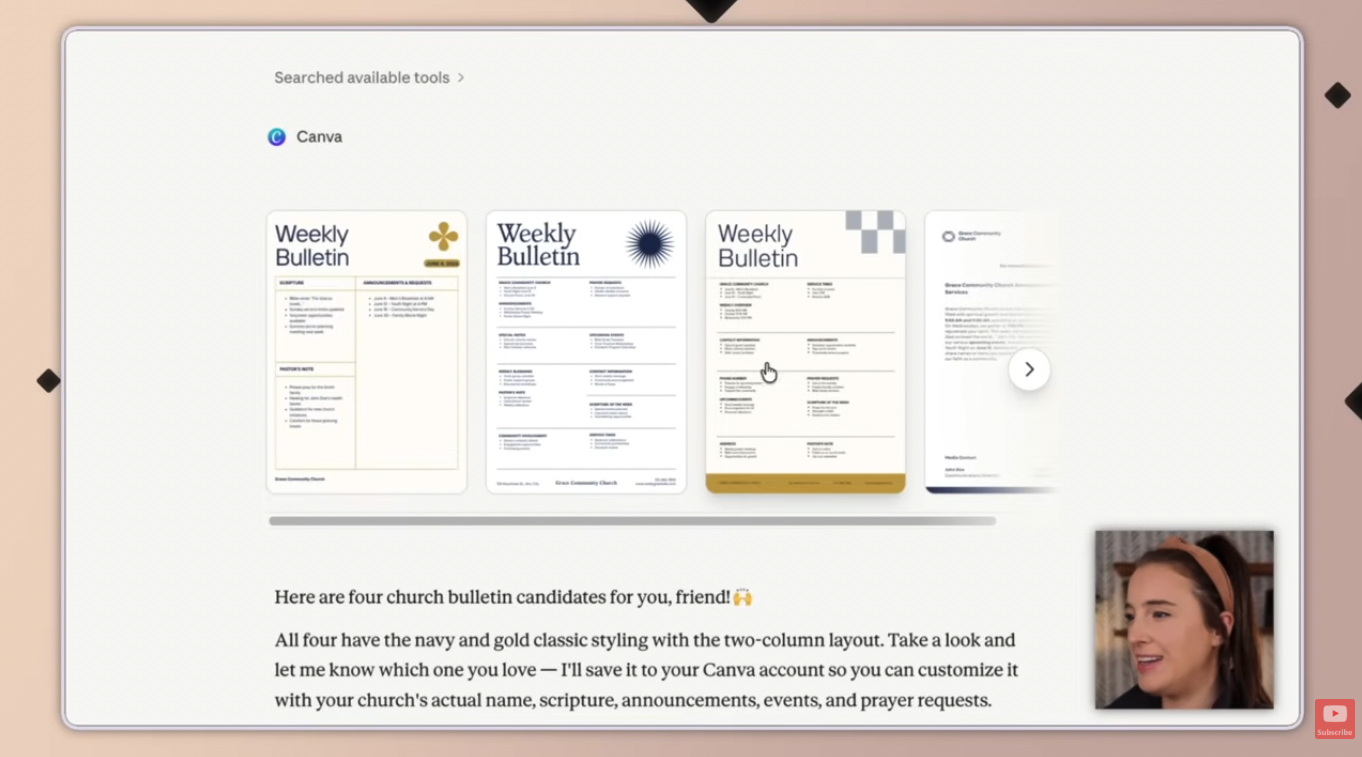
"Create a weekly bulletin in Canva. Sections for service times, announcements, upcoming events, a scripture of the week, and prayer requests. Classic clean style, navy and gold, letter size, two columns."
Claude returns four options, each a different take on what you asked for. From there you refine — "modernize design one, keep the navy and gold, add a logo placeholder, add a professional stock photo." Claude pulls a stock photo from Canva's library and regenerates. Not loving it? Have Claude save it to your Canva account and finish by hand. Either way, you've got a reusable template in a fraction of the usual time.
2 pro tips to level up your designs
These two small habits make a big difference.
Tip 1: Ask for multiple versions at once. Instead of building one design and tweaking it back and forth forever, say "give me three different layout options and let me pick my favorite." You see a range in the first round and refine from the best starting point instead of nudging one design endlessly.
Tip 2: Save your work inside a Claude project. A Claude project is a dedicated workspace — think of it like a smart folder. You can upload reference files, add custom instructions, and save your chats so Claude carries your brand context, past conversations, and preferences into every new design automatically. No re-explaining yourself every single time. Using projects from the start seriously cuts down the back-and-forth. (The Claude Starter Pack includes three ready-to-use project templates so you don't have to figure out what to put in them.)
Can you sell the digital products you make with Claude and Canva?
Yes — printables, planners, and template sets built this way are exactly the kinds of products people sell every day. A couple of honest notes, though.
Templates are usually sold as editable products buyers customize themselves, which is different from selling a flattened printable. And because Canva's design elements and AI-generated content come with their own licensing terms, it's worth reading Canva's content license and commercial-use guidelines before you list anything, so you know what's cleared for resale and what isn't. Two minutes of checking saves you a headache later.
The workflow itself, though? It's genuinely one of the fastest ways I've seen to go from "I have an idea" to "I have a product to sell."
Frequently asked questions
Can you really make digital products with Claude and Canva?
Yes. Once Claude is connected to Canva, you describe the product you want and Claude builds it as a real, editable Canva design — not just an idea or a flat image. You can refine it by chatting, and export the finished file as a PDF. Printables, planners, and template sets are all common products made this way.
How do you connect Claude to Canva?
In Claude, open Settings and go to Connectors. Click add connector, choose browse connectors, find Canva, and hit the plus icon. Click connect, then sign into your Canva account and authorize it. To use it, start a new chat and toggle the Canva connector on for that conversation.
Is the Claude Canva connector free to use?
Adding the connector itself is free. But building full designs in Canva — using your brand kit, custom fonts, and most design features — requires Canva Pro (there's a free 30-day trial). You'll also need a Claude account with access to connectors.
Does Claude use my Canva brand kit?
Yes, and it's one of the best parts. Include "use my Canva brand kit" in your prompt and Claude pulls your saved colors and fonts directly from Canva, so the design comes back on-brand without you describing your brand at all. Your brand kit needs to be set up in the Canva account you connected.
What kinds of digital products can you make with Claude and Canva?
Printables like planners, trackers, and command centers; template sets for social media; newsletters and bulletins; and many other letter-size or platform-specific designs. Anything you'd normally build from a Canva template is fair game, and Claude can generate several versions for you to choose from.
Can Claude export the design without me opening Canva?
Yes. You can ask Claude to export a specific design as a PDF and it handles the export inside your Canva account, then gives you a download link right in the chat. The design is also saved to your Canva account for further editing later.
Do I need to know how to design to use this?
No, and that's the point. If you have ideas but freeze at a blank canvas, this workflow does the heavy lifting. The main skill is prompting clearly — the more context and detail you give Claude, the closer the first draft lands.
Ready to actually sell what you make?
Building the product is step one. Turning it into a business that sells on repeat is the real goal. My free 45-minute masterclass walks through the exact four-step system for starting and growing a profitable digital products business — even if you're starting from complete scratch.
So, friend — what are you going to build first? A printable? A template set to sell? Whatever it is, take imperfect action and just start. Your future self will thank you.
And if you want more where this came from, I broke down my favorite hidden Canva features most people aren't using over here too.
Grab my free Claude Starter Pack — including that copy-paste mega prompt template — and you'll be automatically added to my email list for more like this!
